

| Using Simulink | |
Control Types
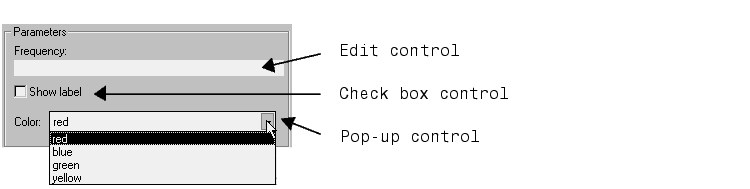
Simulink enables you to choose how parameter values are entered or selected. You can create three styles of controls: edit fields, check boxes, and pop-up controls. For example, this figure shows the parameter area of a mask dialog box which uses all three styles of controls (with the pop-up control open).
Defining an Edit Control
An edit field enables the user to enter a parameter value by typing it into a field. This figure shows how the prompt for the sample edit control was defined.
The value of the variable associated with the parameter (freq) is determined by the Assignment type defined for the prompt
| Assignment |
Value |
| Evaluate |
The result of evaluating the expression entered in the field. |
| Literal |
The actual string entered in the field. |
Defining a Check Box Control
A check box enables the user to choose between two alternatives by selecting or deselecting a check box. This figure shows how the sample check box control is defined.
The value of the variable associated with the parameter (label) depends on whether the check box is selected and the Assignment type defined for the prompt.
| Check Box |
Evaluated Value |
Literal Value |
| Checked |
1 |
'on' |
| Not checked |
0 |
'off' |
Defining a Pop-Up Control
A popup enables the user to choose a parameter value from a list of possible values. You specify the list in the Popup strings field, separating items with a vertical line (|). This figure shows how the sample pop-up control is defined.
The value of the variable associated with the parameter (color) depends on the item selected from the pop-up list and the Assignment type defined for the prompt.
| | Prompts and Associated Variables | Default Values for Masked Block Parameters | |