

| Data Acquisition Toolbox | |
Previewing Data
Before you extract and analyze acquired data, you may want to examine (preview) the data as it is being acquired. Previewing the data allows you to determine if the hardware is performing as expected and if your acquisition process is configured correctly. Once you are convinced that your system is in order, you may still want to monitor the data even as it is being analyzed or saved to disk.
Previewing data is managed with the peekdata function. For example, to preview the most recent 1000 samples acquired for the analog input object ai
data = peekdata(ai,1000);
After start is issued, you can call peekdata. peekdata is a nonblocking function since it immediately returns control to MATLAB. Therefore, samples may be missed or repeated.
When a peekdata call is processed, the most recent samples requested are immediately returned, but the data is not extracted from the engine. In other words, peekdata provides a "snapshot" of the most recent requested samples. This situation is illustrated below.
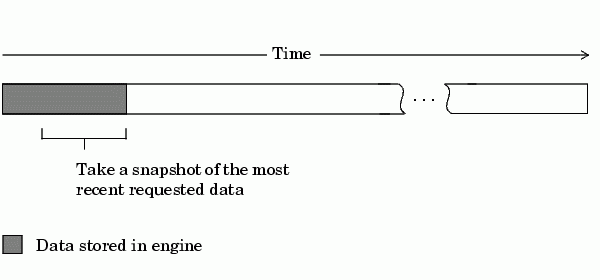
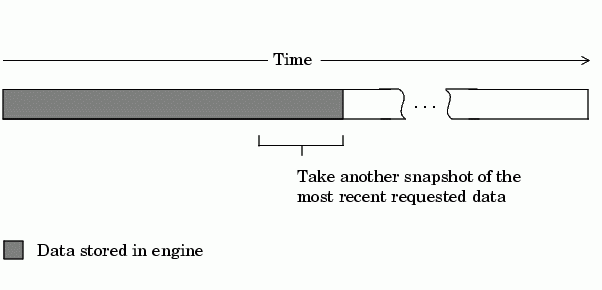
If another peekdata call is issued, then once again, only the most recent requested samples are returned. This situation is illustrated below.
Rules for Using peekdata
Using peekdata to preview data follows these rules:
peekdata before a trigger executes. Therefore, peekdata is useful for previewing data before it is logged to the engine or a disk file.peekdata while the device object is running. However, you can call peekdata once after the device object stops running.For more information about peekdata, refer to its reference pages in Chapter 9, Function Reference.
Example: Polling the Data Block
Under certain circumstances, you may want to poll the data block. Polling the data block is useful when calling peekdata since this function does not block execution control. For example, you can issue peekdata calls based on the number of samples acquired by polling the SamplesAcquired property.
You can run this example by typing daqdoc5_1 at the MATLAB command line.
1. Create a device object - Create the analog input object AI for a sound card. The available adaptors and hardware IDs are found with daqhwinfo.
AI = analoginput('winsound');
%AI = analoginput('nidaq',1);
%AI = analoginput('cbi',1);
2. Add channels - Add one hardware channel to AI.
addchannel(AI,1);
%addchannel(AI,0); % For NI and CBI
3. Configure property values - Define a 10 second acquisition, set up a plot, and store the plot handle and title handle in the variables P and T, respectively.
duration = 10; % Ten second acquisition
ActualRate = get(AI,'SampleRate');
set(AI,'SamplesPerTrigger',duration*ActualRate)
figure
set(gcf,'doublebuffer','on') %Reduce plot flicker
P = plot(zeros(1000,1));
T = title([sprintf('Number of peekdata calls: '), num2str(0)]);
xlabel('Samples'), axis([0 1000 -1 1]), grid on
4. Acquire data - Start AI and update the display for each 1000 samples acquired by polling SamplesAcquired. The drawnow command forces MATLAB to update the plot. Since peekdata is used, all acquired data may not be displayed.
start(AI) i = 1; while AI.SamplesAcquired < AI.SamplesPerTriggerwhile AI.SamplesAcquired < 1000*ienddata = peekdata(AI,1000);set(P,'ydata',data); set(T,'String',[sprintf('Number of peekdata calls: '), num2str(i)]); drawnow i = i + 1; end while strcmp(AI.Running,'On') end
5. Clean up - When you no longer need AI, you should remove it from memory and from the MATLAB workspace.
delete(AI)
clear AI
As you run this example, you may not preview all 80,000 samples stored in the engine. This is because the engine may store data faster than it can be displayed, and peekdata does not guarantee that all requested samples are processed.
| | Managing Acquired Data | Extracting Data from the Engine | |